Ticket System
A ticket is a private channel where a member and your staff can talk one-on-one, perfect for support requests, applications, or reports. iHorizon's ticket system puts a panel in a channel; when a member clicks its button, the bot opens a fresh private channel just for them and their handlers. Once the matter is settled, staff close the ticket, save a transcript, and delete it, keeping your server tidy.
Setup happens once (create a panel, pick where tickets are created, turn the module on). The rest of the commands are used inside an open ticket to manage it.
If the ticket opener leaves the server
When the member who opened a ticket leaves the server, iHorizon saves an HTML transcript to the ticket log channel and deletes their ticket automatically. This only happens if a log channel is configured with /ticket log-channel; without one, the ticket stays open.
/ticket add-member <user>
Requires the Manage Channels permission
Only members with the Manage Channels permission can use this command.
| Option | Type | Required | Choices |
|---|---|---|---|
user |
User | Yes | - |
Adds another member to the current ticket, giving them access to the private channel. Use it to pull in a specialist or a second staff member.
/ticket close
Requires the Manage Channels permission
Only members with the Manage Channels permission can use this command.
Closes the current ticket. The member who opened it loses access to the channel and it disappears from their view, while staff keep it for review. iHorizon also generates an HTML transcript of the conversation automatically, posts it in the channel, and sends a copy to the ticket log channel if one is configured.
/ticket rename <name>
Requires the Manage Channels permission
Only members with the Manage Channels permission can use this command.
| Option | Type | Required | Choices |
|---|---|---|---|
name |
String | Yes | - |
Renames the current ticket channel, handy for labelling it by topic or by who is handling it.
/ticket remind
Requires the Manage Channels permission
Only members with the Manage Channels permission can use this command.
Nudges the member who opened the ticket when the conversation has gone quiet: iHorizon sends them a private message with a link back to the ticket and how long ago their last message was. If their DMs are closed, the bot tells you it couldn't reach them.
/ticket delete
Permanently deletes the current ticket channel, the final step once a ticket is resolved. If a ticket log channel is configured, iHorizon automatically saves an HTML transcript there before deleting, and when you delete someone else's ticket, its opener also receives a copy of the transcript by private message. Without a log channel, the channel is deleted with no transcript at all, so grab one with /ticket transcript first if you want a record.
/ticket config <action>
Requires the Administrator permission
Only members with the Administrator permission can use this command.
| Option | Type | Required | Choices |
|---|---|---|---|
action |
String | Yes | Remove the module, Power on the module |
Turns the ticket system on or off for your server. Power it on before members can open tickets.
/ticket log-channel <channel>
Requires the Administrator permission
Only members with the Administrator permission can use this command.
| Option | Type | Required | Choices |
|---|---|---|---|
channel |
Channel | Yes | - |
Sets the channel where iHorizon posts ticket logs and transcripts, giving your staff a record of every ticket even after it is deleted.
/ticket open
Re-opens a ticket that was previously closed, restoring the opener's access to the channel so the conversation can continue.
/ticket remove-member <user>
Requires the Manage Channels permission
Only members with the Manage Channels permission can use this command.
| Option | Type | Required | Choices |
|---|---|---|---|
user |
User | Yes | - |
Removes a member from the current ticket, taking away their access to the channel.
/ticket set-here <name> [description] [category]
Requires the Administrator permission
Only members with the Administrator permission can use this command.
| Option | Type | Required | Choices |
|---|---|---|---|
name |
String | Yes | - |
description |
String | No | - |
category |
Channel | No | - |
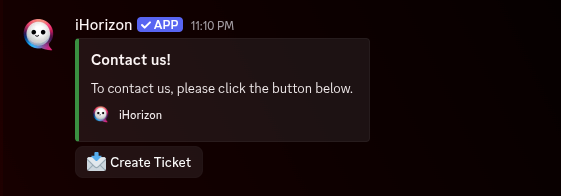
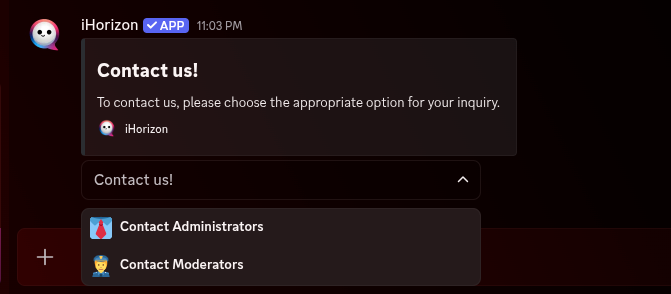
Posts a ticket panel in the current channel, the panel your members use to open a ticket. After running the command, iHorizon asks you to pick the panel's style: a button panel (a single button that opens a ticket) or a dropdown panel (a select menu). Give it a name and an optional description shown on the panel, and optionally a category where the resulting ticket channels will be created. The category only applies to the button style.
/ticket panel [panel_id]
Requires the Administrator permission
Only members with the Administrator permission can use this command.
| Option | Type | Required | Choices |
|---|---|---|---|
panel_id |
String | No | - |
Where /ticket set-here posts a simple ready-made panel, /ticket panel opens the full builder. Instead of a single button, a builder panel shows a dropdown with up to ten categories, each opening its own kind of ticket with its own staff roles, category, welcome embed, and questions. Run the command with no ID to start a new panel; pass a panel_id to reopen and edit an existing one.
The command replies with a single builder message: an embed summarising the panel's current settings, a dropdown of every action you can take, and a Send button. Everything happens on that one message: pick an action, answer the prompt or modal, and the summary updates in place. Only the person who ran the command can operate it, and the builder stays live for a while before timing out.
How it fits together
Each panel needs an embed to show above its dropdown. You don't design that here: build it first with /utils embed, which gives you an embed ID, then point the panel at that ID with Change related embed. The same applies to the embed shown inside a freshly opened ticket (Change ticket channel embed) and to per-option embeds. In any ticket embed you can include the {category} variable, which is replaced with the category the member picked when they opened the ticket.
A typical first run: build an embed with /utils embed → open /ticket panel → Change related embed (paste the embed ID) → Add/remove option fields (add at least one category) → set the staff Role to ping and the Category where tickets are created → Save current configuration → Send and choose the channel to post it in.
The saved indicator
The first summary field, 💾 Saved Configuration, shows 🔴 while you have unsaved edits and 🟢 once you save. Every change flips it back to 🔴, so use Save current configuration before you walk away. Send also saves automatically as it posts the panel.
Builder actions
The dropdown on the builder message offers these actions:
| Action | What it does |
|---|---|
| Save current configuration | Writes your changes to the database and closes the builder. |
| Show preview | Shows you (privately, as an ephemeral message) exactly what members will see: the embed plus its category dropdown. Needs a related embed and at least one option. |
| Change related embed | Sets the embed shown above the panel, by its /utils embed ID. |
| Add/remove a role to ping | Picks the staff roles pinged when any ticket from this panel opens (up to 10). |
| Change placeholder | Sets the grey prompt text on the category dropdown (e.g. "Select a category to open a ticket"). |
| Change category | Sets the Discord category where new ticket channels are created. |
| Change category for one specific option | Overrides the category for a single option, so that one kind of ticket lands elsewhere. |
| Change pinged user | Toggles whether the member who opened the ticket is pinged in their new channel. |
| Add/remove option fields | Adds or removes the choices in the dropdown. Each option has a name, an optional description, and an optional emoji (up to 10 options). |
| Change form | Adds or removes the questions every member answers, in a pop-up form, before their ticket is created (up to 3). |
| Change ticket channel embed | Sets the embed posted inside the newly created ticket channel, by embed ID. Supports the {category} variable. |
| Show menu to add/remove members | Toggles the dropdown inside tickets that staff use to pull people in or out. |
| Show button to delete a ticket | Toggles the delete button on tickets. |
| Show transcript button | Toggles the transcript button on tickets. |
| Configure an embed per option | Gives one specific option its own inside-the-ticket embed, overriding the panel's default. |
| Configure a form per option | Gives one specific option its own set of questions (up to 3), instead of the panel-wide form. |
| Configure roles to ping per option | Sets the staff roles pinged for one specific option, overriding the panel-wide roles. |
Panel-wide vs. per-option
Most settings come in two flavours: a panel-wide default (category, ping roles, form, ticket embed) and a per-option override. Set the panel-wide values for the common case, then use the per-option actions only where one category needs to behave differently, for example routing "Report a member" tickets to your moderators and "Billing" tickets to your admins.
Before you can send
A panel needs a valid related embed and at least one option before Send will post it. Limits: up to 10 options per panel, and up to 3 questions per form (whether panel-wide or per option).
/ticket set-category <category-name>
Requires the Administrator permission
Only members with the Administrator permission can use this command.
| Option | Type | Required | Choices |
|---|---|---|---|
category-name |
Channel | Yes | - |
Sets the category where new ticket channels are created, so every ticket lands in the same place.
/ticket transcript
Generates an HTML transcript of the whole conversation and sends it to you by private message. Make sure your DMs are open, otherwise iHorizon can't deliver it and will tell you so.
/ticket unlink
Requires the Manage Channels permission
Only members with the Manage Channels permission can use this command.
Unlinks the current channel from the ticket system, so iHorizon no longer treats it as a ticket. The channel is renamed ("ticket" becomes "channel" in its name) and the original opening message is cleared. Useful if you want to keep the channel but stop it behaving like a ticket.