AuthRestore
iHorizon includes in its public version the AuthRestore feature, a homemade alternative to popular tools like RestoreCord or VaultCord.
AuthRestore allows you to restore your former members in case of mass bans or any other situation causing significant member loss on your server. iHorizon uses the "Join servers for you" permission to add these members to your server.
AuthRestore uses a unique 24-character identifier composed of numbers and uppercase and lowercase letters to store AuthRestore data.
For more information on AuthRestore commands, please consult our command search engine available at: https://search.ihorizon.org
AuthRestore does not restore your members without their consent
AuthRestore can only restore your members with their consent. You must run the /authrestore set command, which will add a button to an existing embed of your choice. Your members will need to click this button to link their account to iHorizon.
/authrestore set <channel> <message_id> [role]
Requires the Administrator permission
Only members with the Administrator permission can use this command.
| Option | Type | Required | Choices |
|---|---|---|---|
channel |
Channel | Yes | - |
message_id |
String | Yes | - |
role |
Role | No | - |
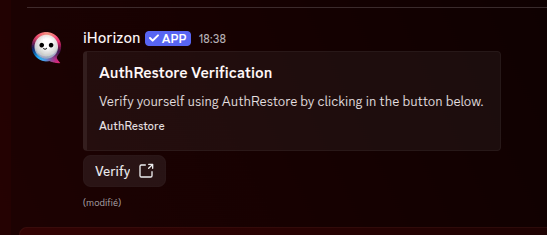
This command allows you to inject an AuthRestore verification button into an existing message (preferably an embed sent by the bot), so that your members can verify themselves with AuthRestore.
The embed must be created by you
The AuthRestore verification embed must be created in advance using the built-in Embed creation tool.
You cannot specify a user message ID
Due to Discord API limitations, bots can only add buttons under their own messages. If you specify the ID of a message not from iHorizon, the bot will notify you with an error message:

Example of an AuthRestore verification embed
/authrestore delete
Requires the Administrator permission
Only members with the Administrator permission can use this command.
This command removes the AuthRestore verification button from your server. iHorizon edits the message the button was attached to, strips the button off it, and forgets which message it was on, so members can no longer verify from it. Your AuthRestore key and the members already verified under it stay intact: they are stored separately from the button, so you can place a new button later with /authrestore set or recover those members with /authrestore force-join.
/authrestore get <key>
Requires the Administrator permission
Only members with the Administrator permission can use this command.
| Option | Type | Required | Choices |
|---|---|---|---|
key |
String | Yes | - |
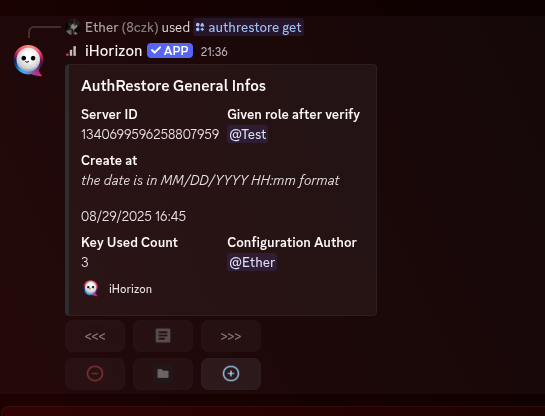
This command allows you to display detailed information about an AuthRestore key. The key must be active for the bot to return its information.
/authrestore force-join <key>
Requires the Administrator permission
Only members with the Administrator permission can use this command.
| Option | Type | Required | Choices |
|---|---|---|---|
key |
String | Yes | - |
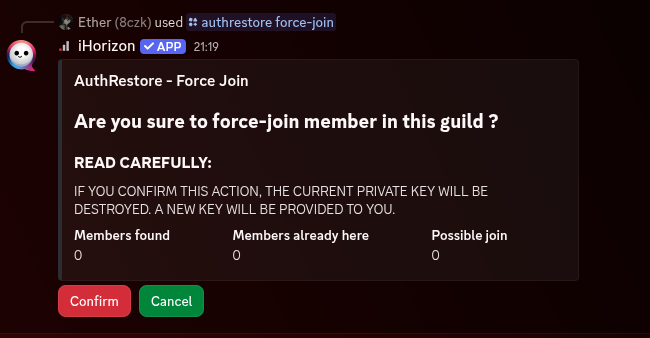
This command allows you to automatically recover and add verified members to your server using your AuthRestore key.
Your AuthRestore key will be destroyed!
After executing the command, the bot will ask you to confirm the action. By clicking the "Confirm" button, the members linked to the key will be added to the server, and the key will be deleted. The bot will then provide you with a new AuthRestore key.
/authrestore roles <key> <roles>
Requires the Administrator permission
Only members with the Administrator permission can use this command.
| Option | Type | Required | Choices |
|---|---|---|---|
key |
String | Yes | - |
roles |
Role | Yes | - |
This command allows you to set an automatic role to assign to members who verify through AuthRestore (via the button attached to a message).