Configuration
You are now ready to configure your self-hosted iHorizon bot. This step involves editing the configuration file to provide your Discord bot token and customize other options.
Editing the Config File
Open the config.example.ts file located at ihrz/src/files/config.example.ts and replace "THE BOT TOKEN" with your actual Discord bot token:
import { ConfigData } from "../../types/configDatad.js";

const config: ConfigData = {
    discord: {
        token: "THE BOT TOKEN",
        // The Discord Bot Token. This can be found in the Discord Developer Portal of your bot

        phonePresence: false,
        // If the bot should have a Phone Bot Activity Presence, aka having a telephone icon in its profile when online, Do-Not-Disturb, etc.
Configuration Options
The file is split into blocks, one per area of the bot. Only discord.token has to be filled in before the first start; every other option changes how iHorizon behaves once it is online.
discord
| Option | Type | Required |
|---|---|---|
token |
String | Yes |
phonePresence |
Boolean | Yes |
messageCommandsMention |
Boolean | No |
defaultMessageCommandsPrefix |
String | No |
token is the bot token you copied from the Discord Developer Portal.
With messageCommandsMention set to true, message commands are triggered by mentioning the bot. Set it to false if you prefer a classic prefix, and put that prefix in defaultMessageCommandsPrefix (? in the example file).
phonePresence
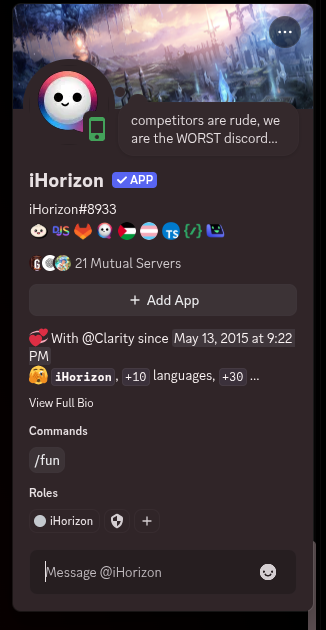
Setting phonePresence to true displays the bot's online status as if it were connected from a phone:
    discord: {
        token: "THE BOT TOKEN",
        // The Discord Bot Token. This can be found in the Discord Developer Portal of your bot

        phonePresence: false,
        // If the bot should have a Phone Bot Activity Presence, aka having a telephone icon in its profile when online, Do-Not-Disturb, etc.

        messageCommandsMention: true,
        /* If is in true, the message commands (prefix commands) are trigerable with @Bot-Mention,
            else, change propriety defaultMessageCommandsPrefix bellow for your default-prefix
        */
lavalink
| Option | Type | Required |
|---|---|---|
nodes |
Array | Yes |
nodes lists the Lavalink servers used for music playback. Each entry needs an id of your choice, the host and port of the server, its authorization password, and secure set to true if the node is reached over TLS.
    lavalink: {
        nodes: [
            {
                id: "example_node",
                // The ID of the Node

                host: "lavalink.example.com",
                // The Host of the Node

                port: 2333,
                // The port of the Node

                authorization: "password",
                // The password of the Node

                secure: false
            }
        ]
    },
Music commands stay silent until at least one node is reachable.
core
| Option | Type | Required |
|---|---|---|
devMode |
Boolean | Yes |
blacklistPictureInEmbed |
String | No |
guildLogsChannelID |
String | Yes |
lavalinkLogsChannelID |
String | No |
reportChannelID |
String | Yes |
With devMode set to true, errors are printed in the console. Set it to false and they are written to the .err.logs folder instead.
blacklistPictureInEmbed takes the URL of a .png image, shown in the embed a blacklisted user receives when they try to interact with the bot.
The three channel IDs decide where the bot reports what happens to it: guildLogsChannelID receives a message when the bot joins or leaves a server, lavalinkLogsChannelID receives Lavalink errors, and reportChannelID receives the bugs users report through the bot.
    core: {
        devMode: true,
        // if true => ERRORS will be displayed in the console; if false => these ERRORS will be located in the .err.logs folder.

        blacklistPictureInEmbed: "A .png URL",
        // Optional: The image of the blacklist embed (when a blacklisted user attempts to interact with the bot)

        guildLogsChannelID: "The Discord Channel ID for logs when guildCreate/guildRemove",
        // The channel where the bot informs of his arrival on a server or when it leaves a server.

        lavalinkLogsChannelID: "The Discord Channel ID for logs when lavalink throws an error",
        // The channel where the error will be sent when lavalink throws an error.

        reportChannelID: "The Discord Channel ID for logs when bugs are reported"
        // The channel where the bot informs of a bug reported by a user of the bot.
    },
command
| Option | Type | Required |
|---|---|---|
always100 |
Array | Yes |
always100 lists the pairs of users whose /love score is always 100%. Write each pair as {USER_ID_ONE}x{USER_ID_TWO}, and leave the array empty if you do not need it.
owners
| Option | Type | Required |
|---|---|---|
users |
Array | Yes |
The owners parameter defines which users are authorized to perform blacklisting and unblacklisting actions, or execute the /eval command (which lets you run JavaScript code directly on your self-hosted bot):
    owners: {
        users: ["User ID", "User ID"]
        /*
        This owners have different permissions than others in the database,

        * They can't be unowner by an owner who is in the Database.
        * They can't be blacklisted by an owner who is in the Database.
        * They can't be banned by an owner who is in the Database.
        */
    },
api
| Option | Type | Required |
|---|---|---|
apiToken |
String | No |
apiToken is sent along with the requests the bot makes to the iHorizon API, for instance the ones behind the /authrestore commands. Choose a strong value and keep it private.
lastfm
| Option | Type | Required |
|---|---|---|
apiKey |
String | No |
sharedSecret |
String | No |
Both values come from a Last.fm API account and are only needed if you want the Last.fm scrobbler module to work. You can drop the whole block otherwise.
console
| Option | Type | Required |
|---|---|---|
emojis |
Object | Yes |
emojis holds the five emojis that prefix the bot's console output: OK, ERROR, HOST, KISA and LOAD. Changing them affects nothing but what you read in your terminal.
database
| Option | Type | Required |
|---|---|---|
method |
String | Yes |
mySQL |
Array | No |
method selects the driver, and accepts sqlite, json, memory, postgresql or cached_postgres.
sqlite is the default and stores everything in src/files/db.sqlite, while json writes to src/files/db.json. memory keeps the data in RAM only, so it is lost as soon as the bot stops.
postgresql and cached_postgres connect to a PostgreSQL server with the credentials of the mySQL array (host, user, password, database and port). cached_postgres serves the data from memory and pushes it back to PostgreSQL every five minutes.
    database: {
        method: "sqlite",
        // The method you want for the database, sqlite is used by default.

        mySQL: [
            {
                host: "",
                password: "",
                database: "",
                user: "",
                port: 3306
            }
        ]
        // The MySQL connection configuration if you want to use MySQL. MySQL is not the default, meaning you need to set it up yourself.
    }
Finalizing
Once you are done editing, rename the file from config.example.ts to config.ts.
You are now ready to start the bot! Continue to Starting the Bot.