Boards
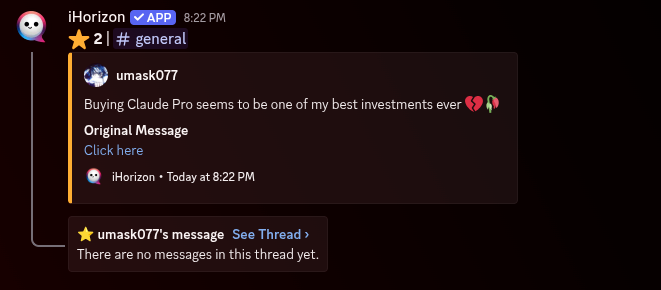
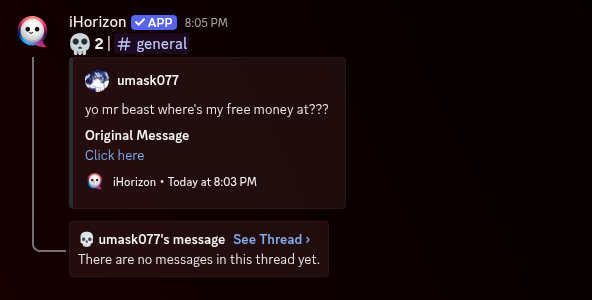
A board keeps your server's best-reacted messages on display. When a message collects enough reactions of a certain emoji, iHorizon copies it into a dedicated channel so it stays visible long after it scrolls out of the conversation. iHorizon offers two boards that work exactly the same way but react to different emojis:
- Starboard: triggered by the ⭐ reaction, for the messages your community loves.
- Skullboard: triggered by the 💀 reaction, for the messages so bad they made everyone laugh.
Setting up either board takes the same four steps: turn it on, choose the channel it posts to, decide how many reactions are needed, and optionally let iHorizon open a discussion thread on each featured message.
Skullboards
/skullboard config <action>
Requires the Administrator permission
Only members with the Administrator permission can use this command.
| Option | Type | Required | Choices |
|---|---|---|---|
action |
String | Yes | Power On, Power Off |
Turns the skullboard on or off for your server. Set it up first with the commands below, then power it on so iHorizon starts watching for 💀 reactions.
/skullboard channel <to>
Requires the Administrator permission
Only members with the Administrator permission can use this command.
| Option | Type | Required | Choices |
|---|---|---|---|
to |
Channel | Yes | - |
Chooses the channel where featured messages are posted. Pick a channel everyone can see.
/skullboard threshold <amount>
Requires the Administrator permission
Only members with the Administrator permission can use this command.
| Option | Type | Required | Choices |
|---|---|---|---|
amount |
Number | Yes | - |
Sets how many 💀 reactions a message needs before it lands on the board. A higher number keeps the board exclusive; a lower one fills it up faster.
/skullboard create-thread <action>
Requires the Administrator permission
Only members with the Administrator permission can use this command.
| Option | Type | Required | Choices |
|---|---|---|---|
action |
String | Yes | Create thread, Don't create thread |
Decides whether iHorizon opens a discussion thread under each message it posts to the board, giving your members a place to react and comment.
Starboards
/starboard config <action>
Requires the Administrator permission
Only members with the Administrator permission can use this command.
| Option | Type | Required | Choices |
|---|---|---|---|
action |
String | Yes | Power On, Power Off |
Turns the starboard on or off for your server. Configure it with the commands below, then power it on so iHorizon starts watching for ⭐ reactions.
/starboard channel <to>
Requires the Administrator permission
Only members with the Administrator permission can use this command.
| Option | Type | Required | Choices |
|---|---|---|---|
to |
Channel | Yes | - |
Chooses the channel where starred messages are posted.
/starboard threshold <amount>
Requires the Administrator permission
Only members with the Administrator permission can use this command.
| Option | Type | Required | Choices |
|---|---|---|---|
amount |
Number | Yes | - |
Sets how many ⭐ reactions a message needs before it makes it onto the board.
/starboard create-thread <action>
Requires the Administrator permission
Only members with the Administrator permission can use this command.
| Option | Type | Required | Choices |
|---|---|---|---|
action |
String | Yes | Create thread, Don't create thread |
Decides whether iHorizon opens a discussion thread under each message posted to the starboard.